
Multicharts
Multicharts - One screen for total market control!
Say goodbye to jumping between tabs to compare charts.
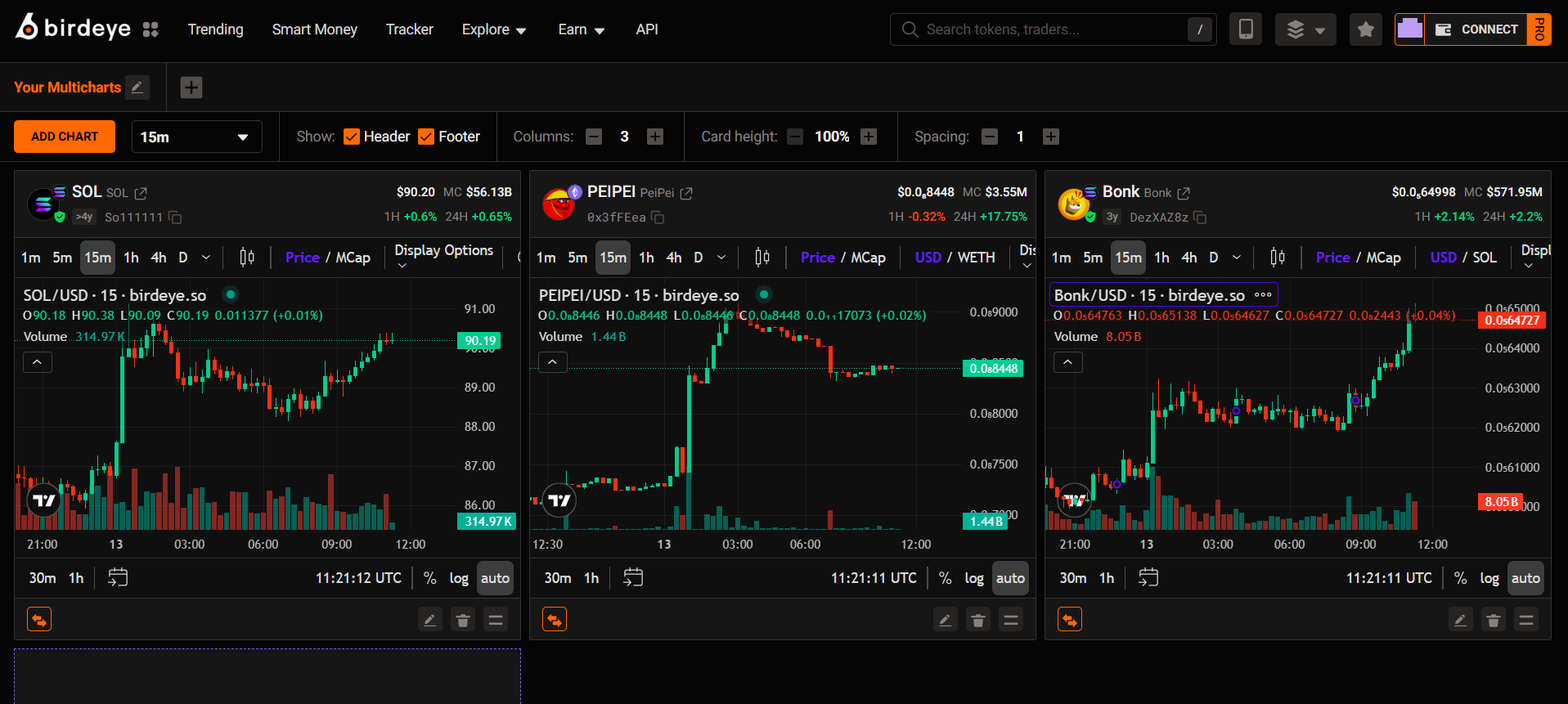
With Multicharts, you can view and compare all your favorite tokens on a single screen. Each layout supports up to 12 charts at once, so you can monitor the market and react instantly—never missing a market pulse.
How to use Multicharts
To start, click here (Multicharts) or go to ‘Multicharts’.
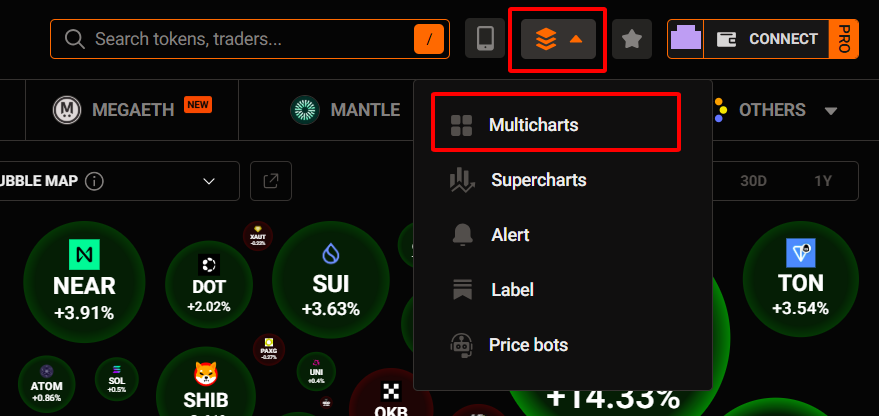
Below are 6 key actions to help you get the most out of Multicharts.
#1 Add a new layout
Every strategy deserves its own perspective.
By creating dedicated layouts, you can quickly spot anomalies and turn insights into profitable actions.
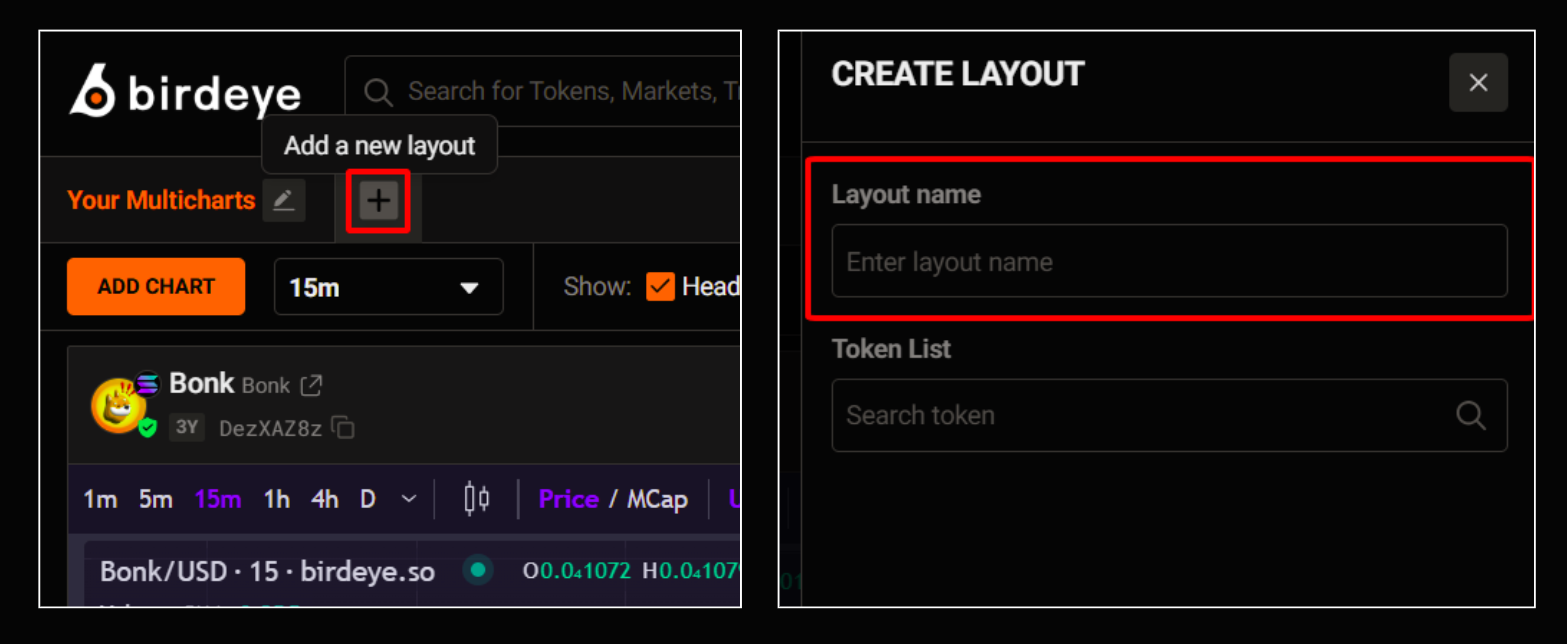
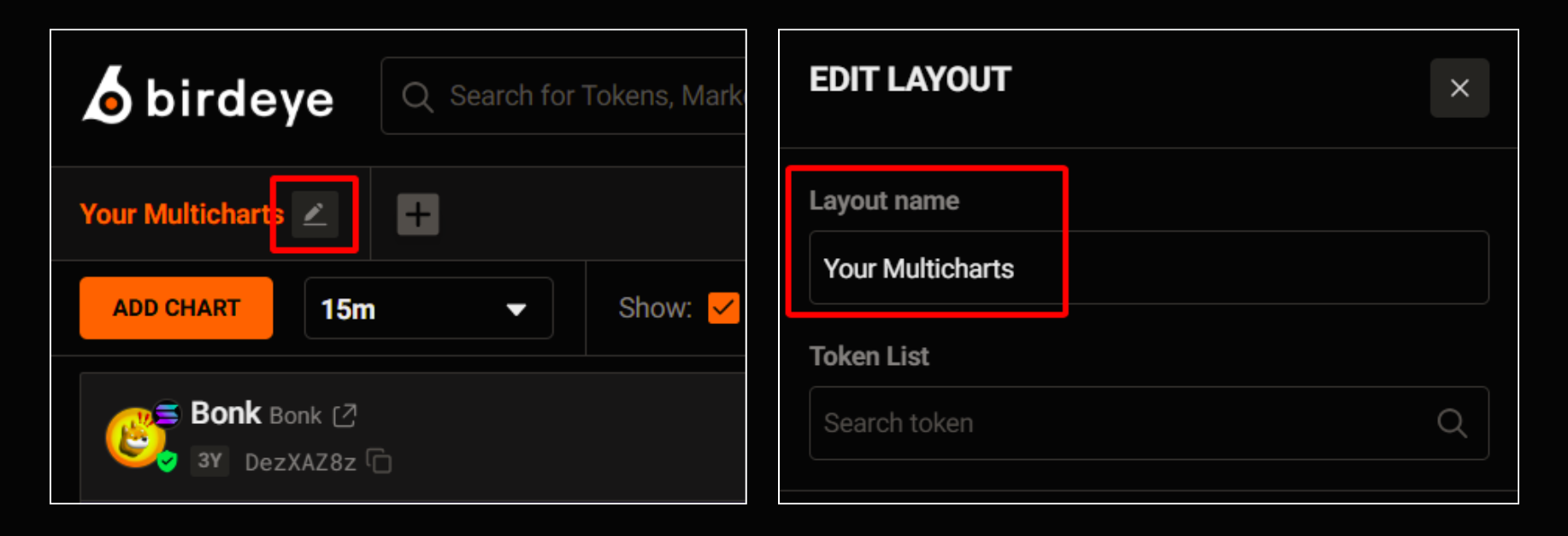
Don’t let your Multicharts get cluttered.
Use the rename feature to label specific category, such as “Meme Gems” or “Hold Portfolio” to keep your focus sharp and react to market movements more effectively.
#2 Add a new chart
Click “Add chart” to start tracking any token instantly.
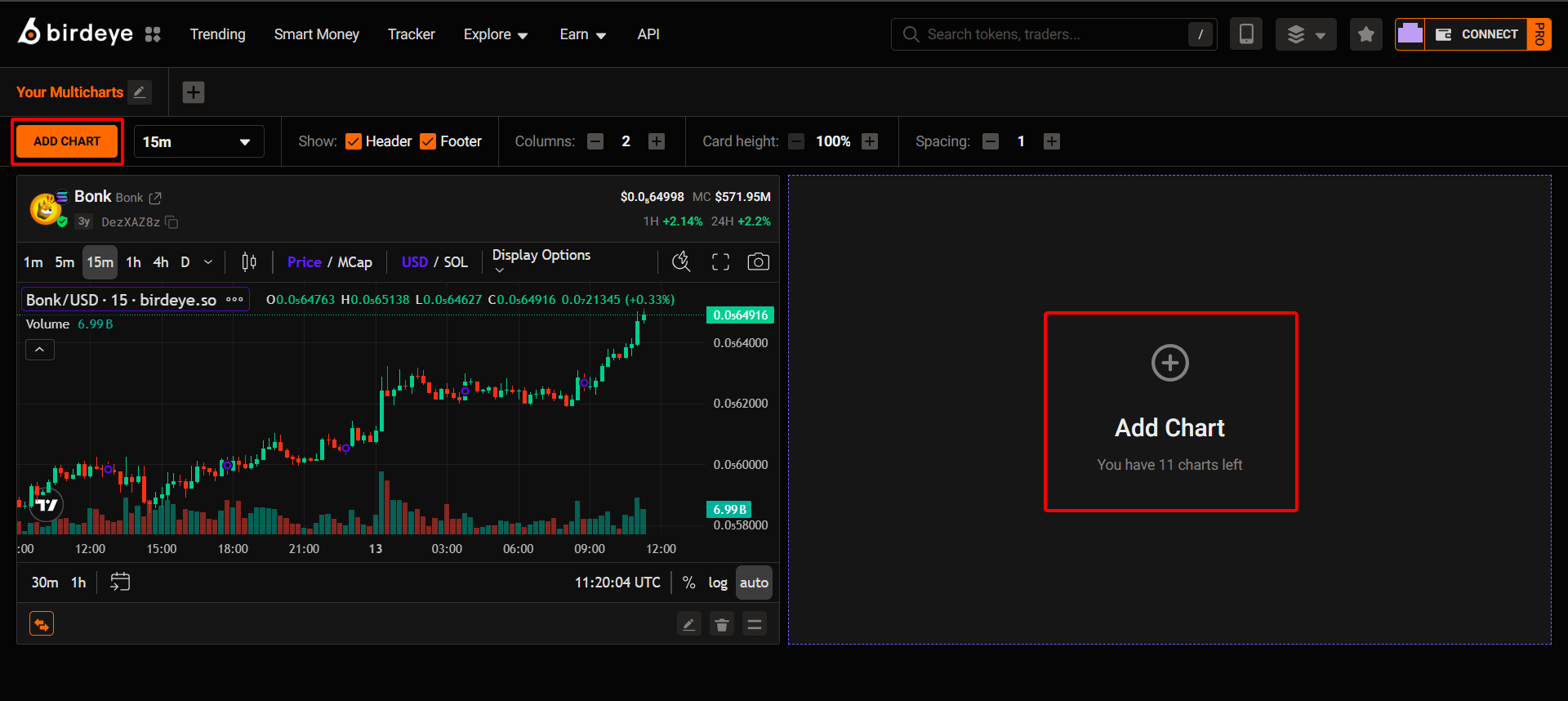
Don’t want to add them one by one? Add a token list in bulk via Edit layout.
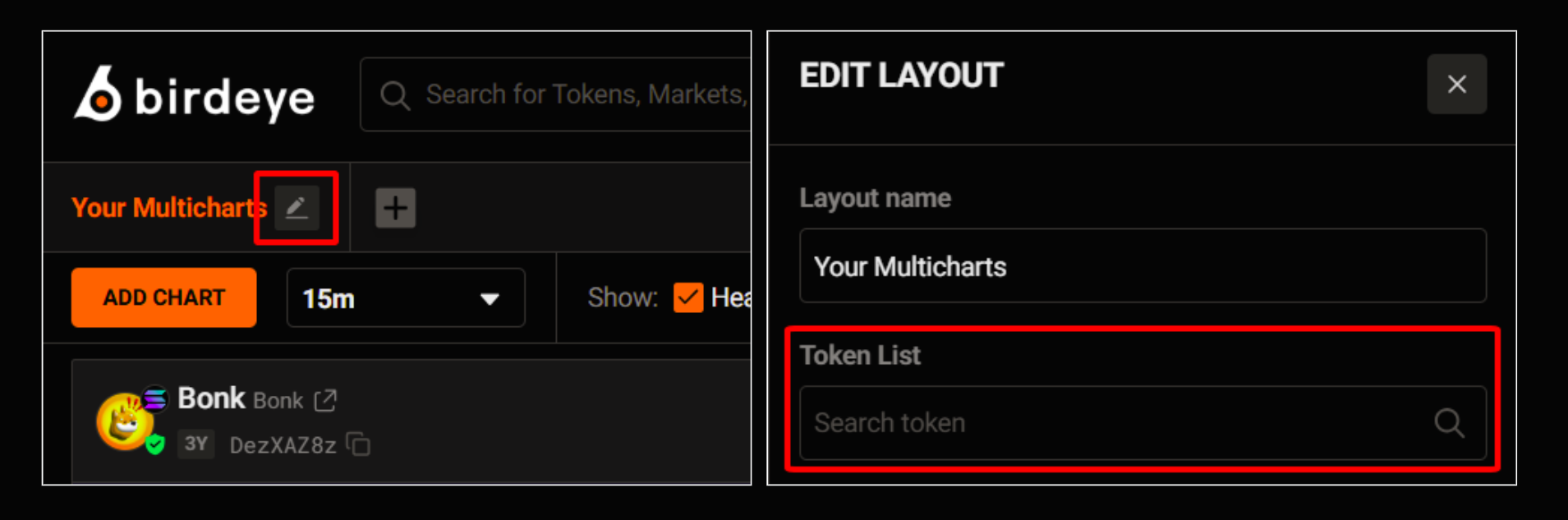
And… boom — your Multicharts is ready.
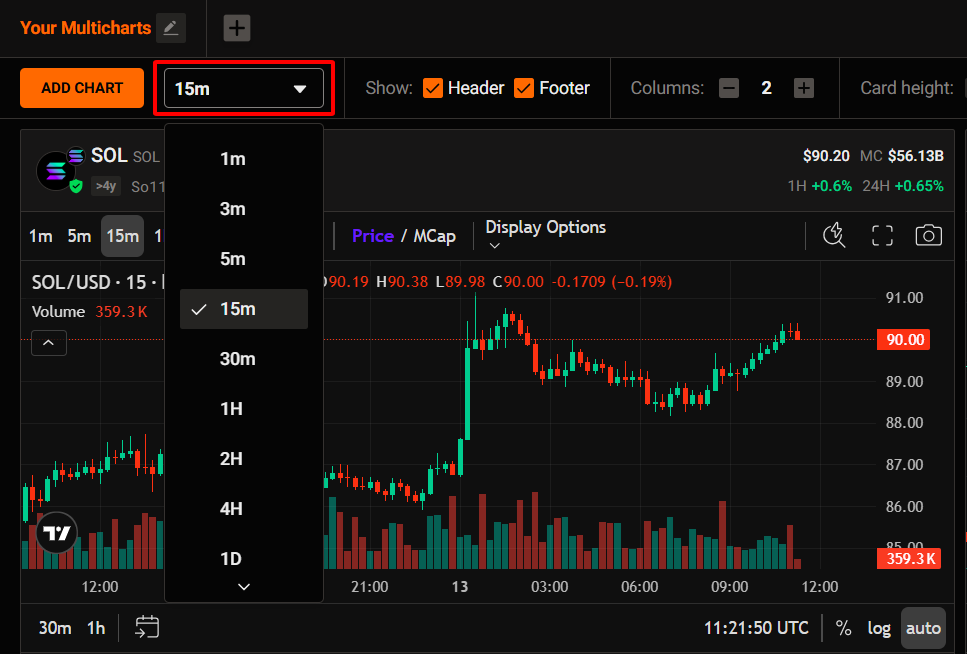
#3 Customize the Time Frame
You can apply the same time frame across all charts (1m, 5m, 1H, 1D) to view price charts from different perspectives without changing each chart individually.
#4 Chart Card Header - Key Information
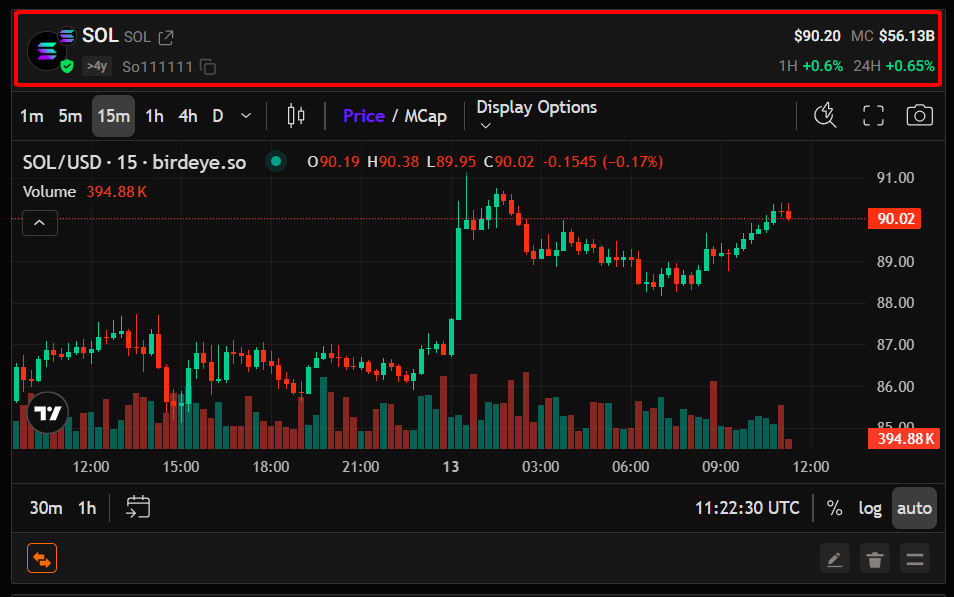
In the Header of each chart card, you can track:
- Key metrics: Price, Market Cap, and 1H/24H price change
- Token info: Name, contract address, and age
#5 Chart Card Footer - Quick Actions
The Footer gives you quick access to tools that help you take action instantly:
[1] Quick Buy/Sell – Trade immediately when you spot an opportunity or risk. Connect your wallet to Birdeye to execute trades directly from the chart.
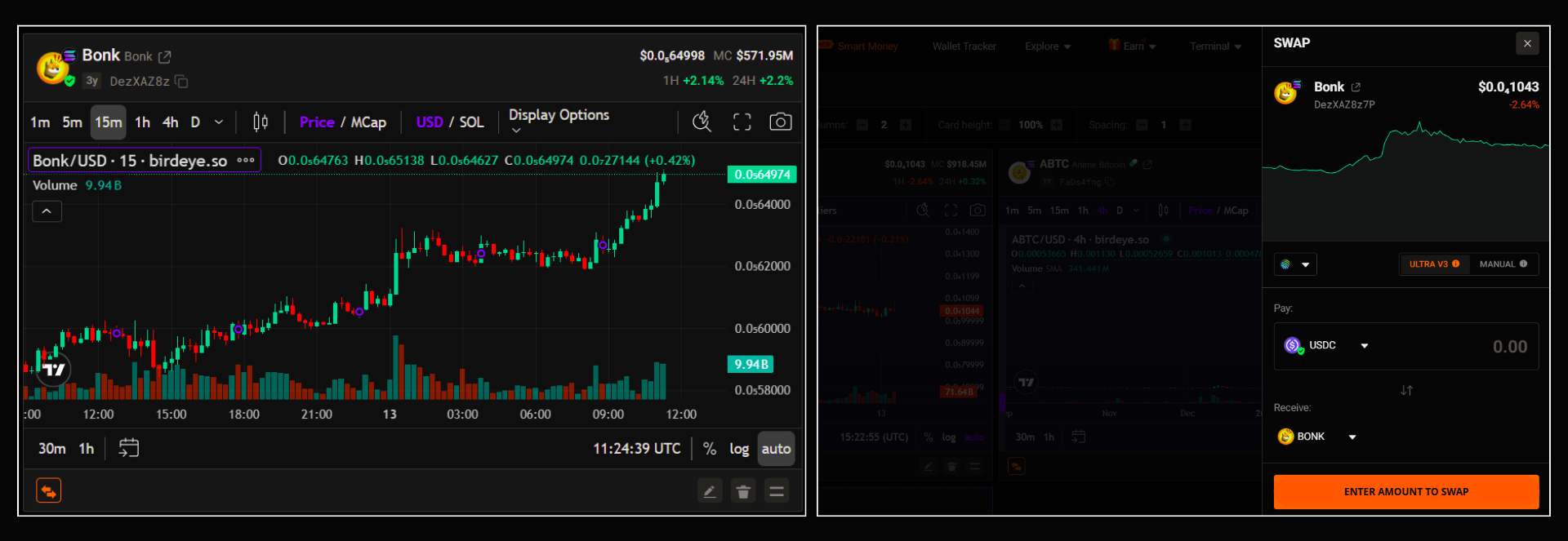
You’ll need:
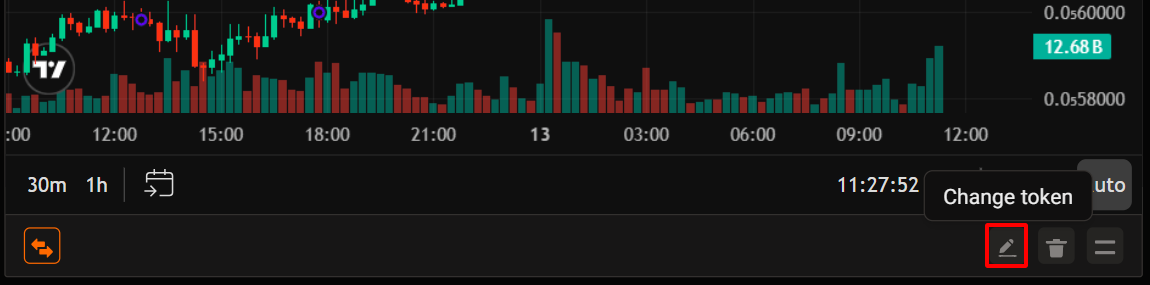
[2] Change token – Switch to a different token in the current chart without deleting it.
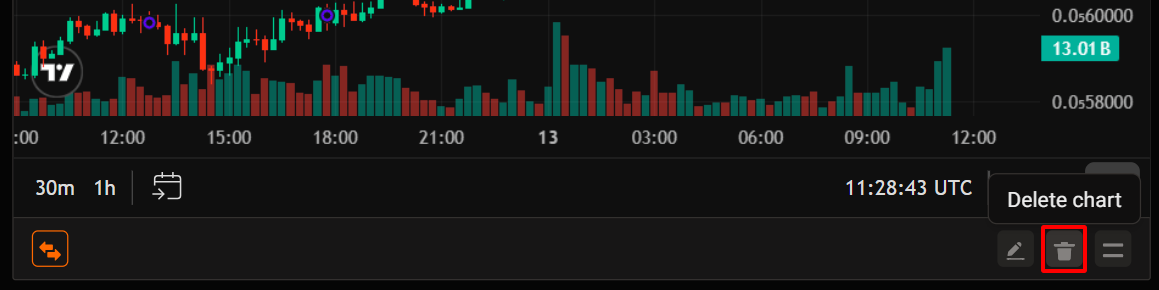
[3] Delete chart: Remove any token charts you no longer want to track.
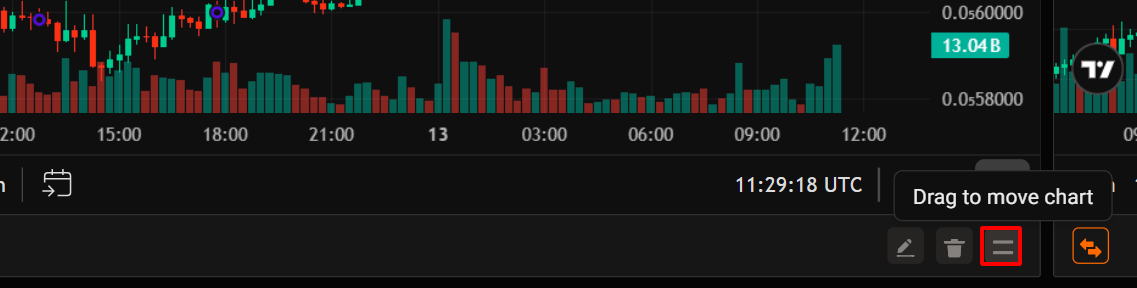
[4] Drag to move chart: Reorder charts to prioritize the tokens you want to focus on.
#6 Customize Display Settings
Customize the layout to stay focused, spot opportunities faster, and trade with more confidence.

You can fine-tune your workspace using the toolbar at the top:
- Show or Hide Header and Footer
- Columns: Set the number of columns in your layout to control how charts are arranged
- Card height: Adjust the chart height to match your screen and analysis style
- Spacing: Control the gap between chart cards for a cleaner view
Unlock more with Pro
| PRO Features | FREE Users | PRO Users |
|---|---|---|
| Multicharts - Limit | 1 layout | Up to 10 layouts |
Updated 3 months ago